apt-get install debian-wizard

Insider infos, master your Debian/Ubuntu distribution

  • About
    • About this blog
    • About me
    • My free software history
  • Support my work
  • Get the newsletter
  • More stuff
    • Support Debian Contributors
    • Other sites
      • My company
      • French Blog about Free Software
      • Personal Website (French)
  • Mastering Debian
  • Contributing 101
  • Packaging Tutorials
You are here: Home / Archives for Documentation

How to choose your SSH agent with Wayland and systemd

November 10, 2025 by Raphaël Hertzog 4 Comments

If you read the above title, you might wonder how the switch to wayland (yes, the graphical stack replacing the venerable X11) can possibly relate to SSH agents. The answer is easy.

For as long as I can remember, as a long time user of gpg-agent as SSH agent (because my SSH key is a GPG sub-key) I relied on /etc/X11/Xsession.d/90gpg-agent that would configure the SSH_AUTH_SOCK environment variable (pointing to gpg-agent’s socket) provided that I added enable-ssh-support in ~/.gnupg/gpg-agent.conf.

Now when I switched to Wayland, that shell script used in the startup sequence of Xorg was no longer used. During a while I cheated a bit by setting SSH_AUTH_SOCK directly in my ~/.bashrc. But that only works for terminals, and not for other applications that are started by the session manager (which is basically systemd --user).

So how is that supposed to work out of the box nowadays? The SSH agents (as packaged in Debian) have all adopted the same trick, their .socket unit have an ExecStartPost setting which runs systemctl --user set-environment SSH_AUTH_SOCK=some-value. This command dynamically modifies the environment of the running systemd daemon and thus influences the environment for the future units started. Putting this in a socket unit ensures an early run, before most of the applications are started so it’s a good choice. They tend to also explicitly ensure this with a directive like Before=graphical-session-pre.target.

However, in a typical installation you end up with multiple SSH agents (right now I have ssh-agent, gpg-agent, and gcr-ssh-agent), which one is the one that the user ends up using? Well, that is not clearly defined, the one that wins is the one that runs last… because each of them overwrites the value in the systemd environment.

Some of them fight to have that place (cf #1079246 for gcr-ssh-agent) by setting explicit After directives. In the above bug I argue that we should let gpg-agent.socket have the priority since that’s the only one that is not enabled by default and that requires the user to opt-in. However, ultimately there will always be cases where you will want to be explicit about the SSH agent that should win.

You could rely on systemd overrides to add/remove ordering directives but that’s pretty fragile. Instead the right way to deal with this is to “mask” the socket units of the SSH agents that you don’t want. Note that disabling (i.e. systemctl --user disable) either will not work[1] or will not be sufficient[2]. In my case, I wanted to keep gpg-agent.socket so I masked gcr-ssh-agent.socket and ssh-agent.socket:

$ systemctl --user mask ssh-agent.socket gcr-ssh-agent.socket
Created symlink '/home/rhertzog/.config/systemd/user/ssh-agent.socket' → '/dev/null'.
Created symlink '/home/rhertzog/.config/systemd/user/gcr-ssh-agent.socket' → '/dev/null'.

Note that if you want that behaviour to apply to all users of your computer, you can use sudo systemctl --global mask ssh-agent.socket gcr-ssh-agent.socket. Now on next login, you will only get a single ssh agent socket unit that runs and the SSH_AUTH_SOCK value will thus be predictable again!

Hopefully you will find that useful as it’s already the second time that I stumble upon this either for me or for a relative. Next time, I will know where to look it up. 🙂

[1]: If you try to run systemctl --user disable gcr-ssh-agent.socket, you will get a message saying that it will not work because the unit is enabled for all users at the “global” level. You can do it with --global instead of --user but it doesn’t help, cf below.

[2]: Disabling an unit basically means stopping to explicitely schedule its startup as part of a desired target. However, the unit can still be started as a dependency of other units and that’s the case here because a socket unit will typically be pulled in by its corresponding service unit.

Auto Mounting Windows Shares in GNOME with Gigolo and gvfs-fuse

October 30, 2012 by Raphaël Hertzog

The traditional way to mount Windows (or Samba) shares involves hardcoding the credentials in a plain-text file and some /etc/fstab entry to mount it automatically at boot time. If you don’t want to store a plain-text copy of your password, you’re bound to mount your shares interactively.
This is clearly sub-optimal and I thought that there must be a better way to handle this in the context of a GNOME desktop (which already supports connecting to such shares in the file browser). So I looked for a solution and after a bit of googling I found one.

Start by installing a few packages:

$ sudo apt-get install gigolo gvfs-fuse

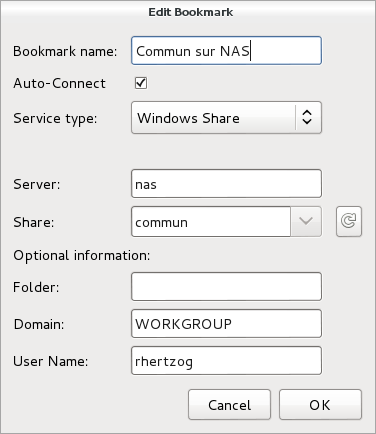
Launch Gigolo, setup your shares as bookmarks and mark them as “Auto-Connect”.

During (first) connection, you will be prompted for your password and you have the possibility to store it in the GNOME keyring (and here it’s encrypted, not in plain-text!).

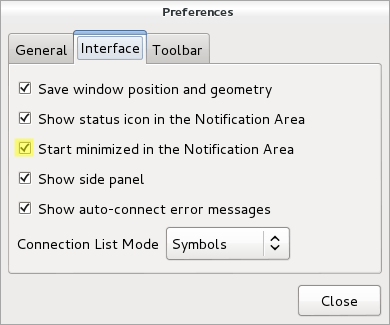
You should also configure the Gigolo preferences so that it starts minimized in the system tray (because we’re going to run it on session startup):

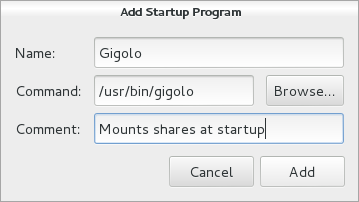
The last step is to ensure that Gigolo is executed at the start of each GNOME session. Unfortunately this GNOME feature is no longer accessible from the control center so you have to execute gnome-session-properties manually (from a terminal or the command line accessible via Alt+F2). Click on “Add” to add a new startup program:

You’re done!

The main limitation is that those shares are not real mounts, instead they are available within GNOME’s virtual file system (GVFS). If you use only 100% GNOME application, then it’s not a problem but otherwise it’s pretty annoying. You can’t “cd” in those shares from a terminal for example.

There’s a workaround though, it’s called “gvfs-fuse” and you installed it right at the start of this HOWTO. This service hooks into GVFS and exports all the virtual filesystem(s) in a real fuse-based mount that is automatically setup in ~/.gvfs/. However for this to work, the user must be in the “fuse” group. So you should run something like this:

$ sudo adduser $USER fuse

By the way, I haven’t found a way to use a non-hidden directory so if you want this directory to be more visible, I suggest that you create a symlink pointing to it.

Do you want to read more HOWTO like this one? Click here to subscribe to my free newsletter, you can opt to receive future articles by email.

How to use quilt to manage patches in Debian packages

August 8, 2012 by Raphaël Hertzog

Most Debian source packages are using the “3.0 (quilt)” format. This means that Debian changes to upstream files are managed in a quilt patch series. Knowledge of quilt is thus a must if you want to get involved in some serious packaging work. Don’t worry, this tutorial will teach you how to use quilt in the context of Debian packaging.

Pre-requisites

Install the packaging-dev package to get a decent set of packages to do Debian packaging. It includes the quilt package.

$ sudo apt-get install packaging-dev

What’s quilt?

Read the description of the Debian package:

Quilt manages a series of patches by keeping track of the changes each of them makes. They are logically organized as a stack, and you can apply, un-apply, update them easily by traveling into the stack (push/pop).

Quilt is good for managing additional patches applied to a package received as a tarball or maintained in another version control system. The stacked organization is proven to be efficient for the management of very large patch sets (more than hundred patches). As matter of fact, it was designed by and for Linux kernel hackers (Andrew Morton, from the -mm branch, is the original author), and its main use by the current upstream maintainer is to manage the (hundreds of) patches against the kernel made for the SUSE distribution.

The various files involved

Stack of files PictureTo better understand the various quilt commands, you should have a basic idea of how the tool works. The “stack of patches” is maintained in a dedicated directory (“patches” by default, but in Debian packages we override this value to “debian/patches”). This directory contains the patch files and a “series” file that gives an ordered list of patches to apply. Example:

$ ls debian/patches/
01_use_stdlib_htmlparser_when_possible.diff
02_disable-sources-in-sphinxdoc.diff
03_manpage.diff
06_use_debian_geoip_database_as_default.diff
series
$ cat debian/patches/series
01_use_stdlib_htmlparser_when_possible.diff
02_disable-sources-in-sphinxdoc.diff
03_manpage.diff
06_use_debian_geoip_database_as_default.diff

When quilt is used, it also maintains some internal files in a directory of its own (it’s named “.pc”). This directory is used to know what patches are currently applied (.pc/applied-patches) and to keep backup copies of files modified by the various patches.

Configuring quilt

Before going further, you should put this in your ~/.quiltrc file:

for where in ./ ../ ../../ ../../../ ../../../../ ../../../../../; do
    if [ -e ${where}debian/rules -a -d ${where}debian/patches ]; then
        export QUILT_PATCHES=debian/patches
        break
    fi
done

This ensures that quilt will always use “debian/patches” instead of “patches” when your current directory is within a Debian source package where debian/patches exists. If you only use quilt for debian packaging, then you can be more expedient and put a simple “export QUILT_PATCHES=debian/patches” in that file.

As a matter of personal preferences, I also have those lines in my ~/.quiltrc:

QUILT_PUSH_ARGS="--color=auto"
QUILT_DIFF_ARGS="--no-timestamps --no-index -p ab --color=auto"
QUILT_REFRESH_ARGS="--no-timestamps --no-index -p ab"
QUILT_DIFF_OPTS='-p'

It enables syntax coloring for the output of several commands and customizes the generated patches to get rid of useless information. I recommend you to use those settings too.

Applying and unapplying patches, navigating in the stack of patches

When you already have a patch series, you can navigate in the stack of patches so that any subset of consecutive patches (starting from the bottom) can be applied. quilt series will list all patches known by quilt.

You can apply all patches with quilt push -a or unapply them all with quilt pop -a. You can also verify what patches are applied (quilt applied) or unapplied (quilt unapplied). quilt push applies the next unapplied patch (i.e. the patch returned by quilt next) and quilt pop unapplies the last applied patch (i.e. the patch returned by quilt top). You can give a patch name as parameter to quilt push/pop and it will apply/unapply all the patches required until the given patch is on the top.

Here are some examples of navigation in a quilt patch series

$ quilt series
02_disable-sources-in-sphinxdoc.diff
03_manpage.diff
06_use_debian_geoip_database_as_default.diff
$ quilt applied
No patches applied
$ quilt next
02_disable-sources-in-sphinxdoc.diff
$ quilt push
Applying patch 02_disable-sources-in-sphinxdoc.diff
patching file docs/conf.py

Now at patch 02_disable-sources-in-sphinxdoc.diff
$ quilt push
Applying patch 03_manpage.diff
patching file docs/man/django-admin.1

Now at patch 03_manpage.diff
$ quilt applied
02_disable-sources-in-sphinxdoc.diff
03_manpage.diff
$ quilt unapplied
06_use_debian_geoip_database_as_default.diff
$ quilt pop -a
Removing patch 03_manpage.diff
Restoring docs/man/django-admin.1

Removing patch 02_disable-sources-in-sphinxdoc.diff
Restoring docs/conf.py

No patches applied
$ quilt push 03_manpage.diff
Applying patch 02_disable-sources-in-sphinxdoc.diff
patching file docs/conf.py

Applying patch 03_manpage.diff
patching file docs/man/django-admin.1

Now at patch 03_manpage.diff
$ quilt top
03_manpage.diff

Creating a new patch

If there’s no quilt series yet, you want to create the “debian/patches” directory first.

If you already have one, you need to decide where to insert the new patch. Quilt will always add the new patch just after the patch which is currently on top. So if you want to add the patch at the end of the series, you need to run “quilt push -a” first.

Then you can use quilt new name-of-my-patch.diff to tell quilt to insert a new empty patch after the current topmost patch. In this operation quilt does almost nothing except updating the series file and recording the fact that the new patch is applied (even if still empty at this point!).

Now to add changes in this patch, you’re supposed to modify files but only after having informed quilt of your intent to modify those files. You do this with quilt add file-to-modify. At this point quilt will make a backup copy of that file so that it can generate the final patch when you’re done with your changes. It’s quite common to forget this step and to be unable to generate the patch afterward. That’s why I recommend you to use quilt edit file-to-modify which is a shorthand for doing quilt add and then opening the file in your favorite text editor.

If you want, you can review your work in progress with quilt diff.

When you’re done with the changes, you should call quilt refresh to generate the patch (or to update it if it was already existing). And since you’re a good packager, you call quilt header --dep3 -e to add DEP-3 meta-information to your patch header.

Importing an external patch

If someone else already prepared a patch, you can just import it right away with quilt import /tmp/the-patch. If you want to import it under a better name you can use the option “-P better-patch-name”. Like quilt new, it inserts the patch after the topmost patch.

Updating patches for a new upstream version

With some luck, your patches will still apply with some offsets in line numbers (quilt displays those offsets) and sometimes with some fuzz:

$ quilt push
[...]
Hunk #1 succeeded at 1362 (offset 11 lines).
Hunk #2 succeeded at 1533 with fuzz 1 (offset 4 lines).
[...]

While offsets are nothing to worry about (it means some lines were added and/or removed before the patched part), fuzz means that patch had to ignore some context lines to find the place where to apply the changes. In that case, you need to double check that patch did the right thing because it might have made changes somewhere where it shouldn’t. Also, you’ll have to update those patches because dpkg-source doesn’t accept any fuzz.

If you’re confident that all patches are correctly applied by quilt, you can refresh them to get rid of those warnings:

$ quilt pop -a
[...]
$ while quilt push; do quilt refresh; done

That was for the easy case. Now let’s deal with the case where some of the patches no longer apply. There’s one case that is usually nice to have:

$ quilt push
Applying patch 04_hyphen-manpage.diff
patching file docs/man/django-admin.1
Hunk #1 FAILED at 194.
1 out of 1 hunk FAILED -- rejects in file docs/man/django-admin.1
Patch 04_hyphen-manpage.diff can be reverse-applied

When the patch can be reverse-applied, it means that the upstream authors included the Debian patch (or that they made the same change even though you forgot to forward the patch). You can thus get rid of it:

$ quilt delete -r 04_hyphen-manpage.diff
Removed patch 04_hyphen-manpage.diff

Note that without the -r the patch is only dropped from the series file. With -r the patch file is also removed.

But there’s a less desirable case where the patch is still relevant but it doesn’t apply any longer:

$ quilt push
Applying patch 01_disable_broken_test.diff
patching file tests/regressiontests/test_utils/tests.py
Hunk #1 FAILED at 422.
1 out of 1 hunk FAILED -- rejects in file tests/regressiontests/test_utils/tests.py
Patch 01_disable_broken_test.diff does not apply (enforce with -f)

In that case, you should follow quilt’s advice to force the patch application, manually apply the parts of the patch that were rejected, and then refresh the patch.

$ quilt push -f
Applying patch 01_disable_broken_test.diff
patching file tests/regressiontests/test_utils/tests.py
Hunk #1 FAILED at 422.
1 out of 1 hunk FAILED -- saving rejects to file tests/regressiontests/test_utils/tests.py.rej
Applied patch 01_disable_broken_test.diff (forced; needs refresh)
$ vim tests/regressiontests/test_utils/tests.py    
$ quilt refresh
Refreshed patch 01_disable_broken_test.diff

Other quilt commands

You should probably read quilt’s manual page too to learn about the various other commands and options that exist.

There’s at least quilt rename new-name that you can also find useful to rename the topmost patch (you can use “-P patch-to-rename” to rename a patch which is not currently at the top).

Feedback

Please leave comments if you have suggestions of improvements, or if there are some tips that are good to know. I might incorporate them in this article.

Feel free to share this article with newbie packagers which are struggling with quilt. For your convenience, you can also refer to this article with this URL: https://raphaelhertzog.com/go/quilt

Found it useful? Be sure to not miss other packaging tips (or lessons), click here to subscribe to my free newsletter and get new articles by email.

Contributing to the translation of Debian

January 31, 2012 by Raphaël Hertzog

If you’re not into packaging and if you asked how you could help Debian, someone probably suggested that you help to translate it.

It’s true that translating Debian is essential if we want to make Debian available to everybody on the world. There are many persons who are stuck as soon as they get a message in English, so it’s important to aim for 100% coverage in terms of localization.

Some vocabulary: localization vs internationalization

Internationalization (i18n) is the work that makes it possible to translate messages in a given application.

Localization (l10n) is the work of translating messages of said application. So as a translator, you’ll be doing “localization” but some knowledge of “internationalization” is still useful… because it will define how you’re supposed to provide the translations. We’ll come back to that later.

Join your localization team

Usually the translation work is shared among multiple translators within a localization team. Check out the Debian International page on www.debian.org to find out instructions for translators for each language.

Many teams have a debian-l10n-*@lists.debian.org mailing list used for coordination, feel free to ask questions on those lists when you start (but make sure that you have read the relevant documentation before).

Each team has its own workflow, so observe for a while to get used to what’s happening before asking your first questions.

What is there to translate?

The translation of most of the software provided by Debian is not handled by Debian. The Debian translation teams “only” handle the translation of:

  • the software that are specific to Debian (debian-installer, dpkg, APT, etc.) (*);
  • the Debconf prompts in all Debian packages (*);
  • the Debian documentation (*);
  • the Debian website;
  • the Debian wiki;
  • the descriptions of packages.

Now before contributing to your first translation, I have to come back to internationalization to teach you a few things. In the above list, the projects marked with “(*)” do use PO files for their translation and the next sections will explain you how to work with those files.

Introduction to Gettext

The free software community has mostly standardized on a single internationalization infrastructure known as Gettext. With this tool, you’re provided a “POT file” which contains all the translatable strings. It looks like this:

# SOME DESCRIPTIVE TITLE.
# Copyright (C) YEAR Software in the Public Interest, Inc.
# This file is distributed under the same license as the PACKAGE package.
# FIRST AUTHOR , YEAR.
#
#, fuzzy
msgid ""
msgstr ""
"Project-Id-Version: dpkg 1.16.1\n"
"Report-Msgid-Bugs-To: debian-dpkg@lists.debian.org\n"
"POT-Creation-Date: 2011-09-23 03:37+0200\n"
"PO-Revision-Date: YEAR-MO-DA HO:MI+ZONE\n"
"Last-Translator: FULL NAME \n"
"Language-Team: LANGUAGE \n"
"Language: \n"
"MIME-Version: 1.0\n"
"Content-Type: text/plain; charset=UTF-8\n"
"Content-Transfer-Encoding: 8bit\n"
"Plural-Forms: nplurals=INTEGER; plural=EXPRESSION;\n"

#: lib/dpkg/ar.c:66
#, c-format
msgid "invalid character '%c' in archive '%.250s' member '%.16s' size"
msgstr ""

#: lib/dpkg/ar.c:81 lib/dpkg/ar.c:97 lib/dpkg/ar.c:108 lib/dpkg/ar.c:112
#: lib/dpkg/ar.c:134 utils/update-alternatives.c:1154
#, c-format
msgid "unable to write file '%s'"
msgstr ""

[…]

The lines starting with “#:” are comments that indicate the source files where the (English) string is used. This can be useful if you want check the source to have more information about how the string is used.

The lines starting with “#,” contain flags that can be important. If the “fuzzy” flag is set, the translated string is not used because it must be updated (or at least verified) since the original string evolved. The “c-format” flags indicates that the string must be a C format string, this has some implications in what’s allowed in the string (in particular when it embeds conversion specifier for arguments submitted to printf-like functions).

Another thing to note is that the translation of the empty string is used to store some meta-information about the translation itself.

Contributing a translation as a PO file

When you start a new translation, you copy that POT file to create a “PO file” for your own language (eg. fr.po for the French language). You replace some template values (identified with the upper case words in the POT file) and you replace all the empty strings on “msgstr” lines with the translation of the string that appears in the previous “msgid” line.

The result could be something like this:

# translation of fr.po to French
# Messages français pour dpkg (Linux-GNU Debian).
msgid ""
msgstr ""
"Project-Id-Version: fr\n"
"Report-Msgid-Bugs-To: debian-dpkg@lists.debian.org\n"
"POT-Creation-Date: 2011-09-23 03:37+0200\n"
"PO-Revision-Date: 2012-01-16 07:57+0100\n"
"Last-Translator: Christian Perrier \n"
"Language-Team: French \n"
"Language: fr\n"
"MIME-Version: 1.0\n"
"Content-Type: text/plain; charset=UTF-8\n"
"Content-Transfer-Encoding: 8bit\n"
"Plural-Forms: Plural-Forms: nplurals=2; plural=n>1;\n"
"X-Generator: Lokalize 1.2\n"

#: lib/dpkg/ar.c:66
#, c-format
msgid "invalid character '%c' in archive '%.250s' member '%.16s' size"
msgstr "caractère invalide « %1$c » dans la taille du membre « %3$.16s » de l'archive « %2$.250s »"

#: lib/dpkg/ar.c:81 lib/dpkg/ar.c:97 lib/dpkg/ar.c:108 lib/dpkg/ar.c:112
#: lib/dpkg/ar.c:134 utils/update-alternatives.c:1154
#, c-format
msgid "unable to write file '%s'"
msgstr "impossible d'écrire le fichier « %s »"

[…]

If there’s already a “PO file” for your language, there might still work to do: there might be strings that have not yet been translated and there might be “fuzzy” strings which have to be updated — strings which were already translated but where the original string has been modified.

There are software that can assist you to edit PO files: poedit, virtaal, lokalize, gtranslator. There are also special extensions for vim (packaged in vim-scripts) and for Emacs.

Submit the translation for inclusion

Once you have a complete PO file, you should submit it for inclusion. Sometimes you will have been granted commit rights to the source code repository so that you can include your translation by yourself. In the other cases, you should submit your translation with a bug report tagged “l10n” and someone else will include your work in the next release.

Depending on the team, the workflow might require a review before the submission. In that case, you usually have to send a call for review on the coordination mailing list.

Go ahead!

Hopefully those explanations will be enough to get you started. There are many other things to learn¹ but it’s good to learn while practicing…

¹ For example, can you find out why the French translation above changed “%c” in “%1$c”?

Do you want to read more tutorials like this one? Click here to subscribe to my free newsletter, you can opt to receive future articles by email.

  • 1
  • 2
  • 3
  • …
  • 12
  • Next Page »

Get the Debian Handbook

Available as paperback and as ebook.
Book cover

Email newsletter

Get updates and exclusive content by email, join the Debian Supporters Guild:

Follow me

  • Email
  • Facebook
  • GitHub
  • RSS
  • Twitter

Discover my French books

Planets

  • Planet Debian

Archives

I write software, books and documentation. I'm a Debian developer since 1998 and run my own company. I want to share my passion and knowledge of the Debian ecosystem. Read More…

Tags

3.0 (quilt) Activity summary APT aptitude Blog Book Cleanup conffile Contributing CUT d-i Debconf Debian Debian France Debian Handbook Debian Live Distro Tracker dpkg dpkg-source Flattr Flattr FOSS Freexian Funding Git GNOME GSOC HOWTO Interview LTS Me Multiarch nautilus-dropbox News Packaging pkg-security Programming PTS publican python-django Reference release rolling synaptic Ubuntu WordPress

Recent Posts

  • How to choose your SSH agent with Wayland and systemd
  • Freexian is looking to expand its team with more Debian contributors
  • Freexian’s report about Debian Long Term Support, July 2022
  • Freexian’s report about Debian Long Term Support, June 2022
  • Freexian’s report about Debian Long Term Support, May 2022

Copyright © 2005-2021 Raphaël Hertzog